
Go to ERNIE and the "My Tools" section. Then select All Tools to see the full list. Open SchedulER.
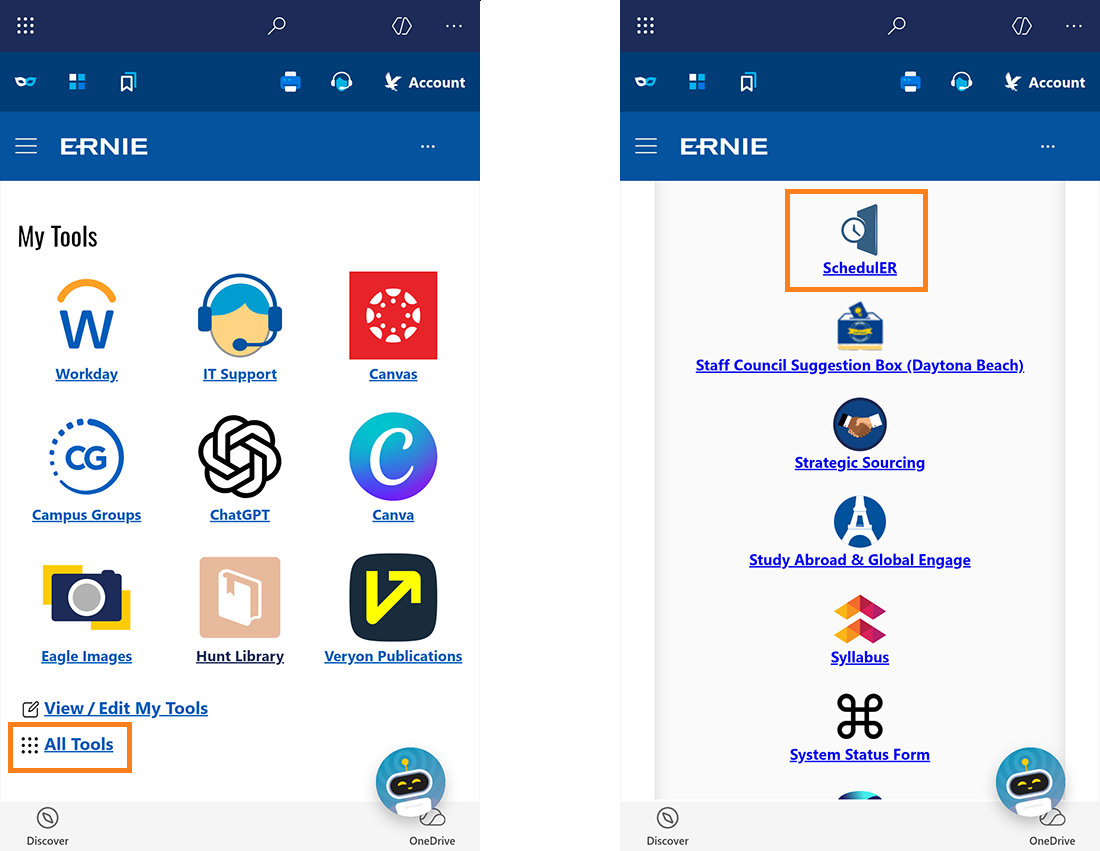
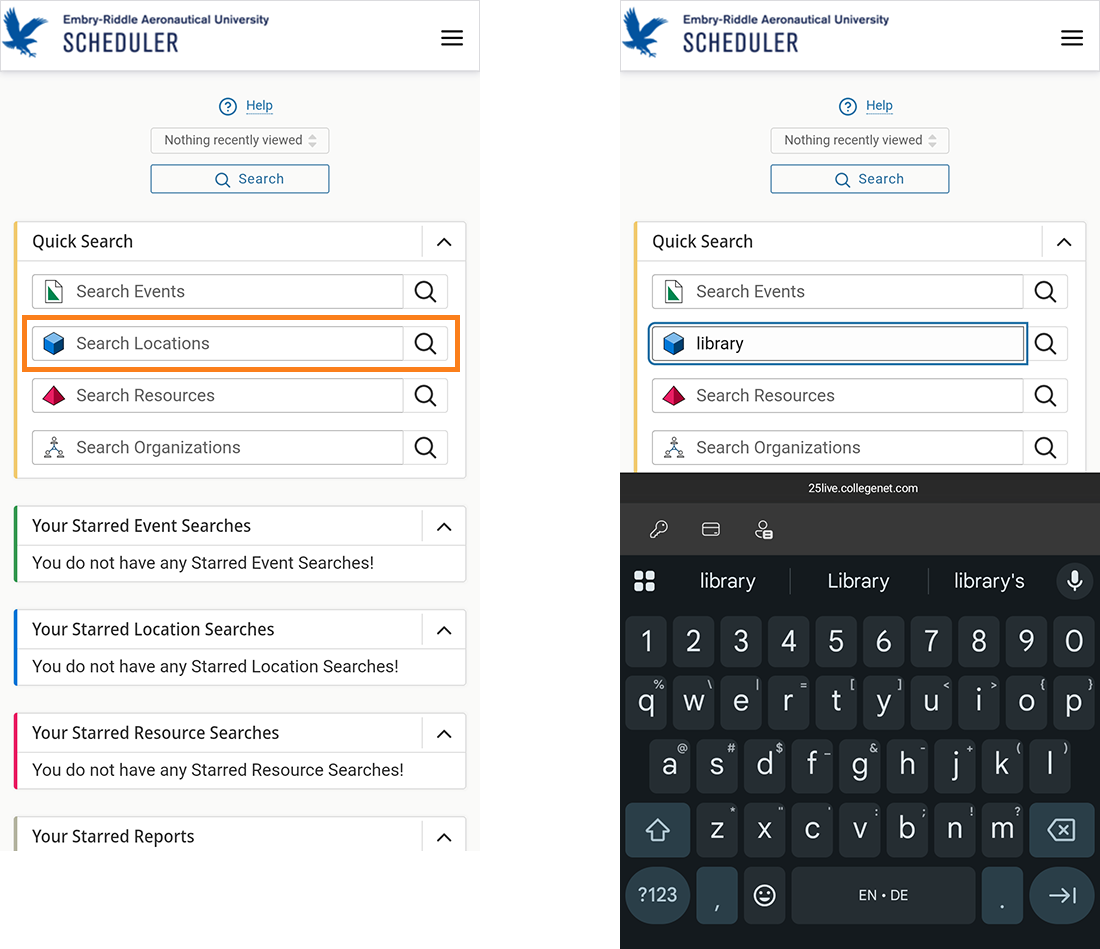
Once in SchedulER, type SU into the Search Locations search bar for all study rooms in the Student Union, or type library for study rooms within the library only.
Select the magnifying glass button or press Enter on your keyboard to load results:
Once the results are loaded, select Availability to see which study rooms are available. Green bars indicate existing reservations, while white spaces indicate availability. The date can be changed by using the arrows.
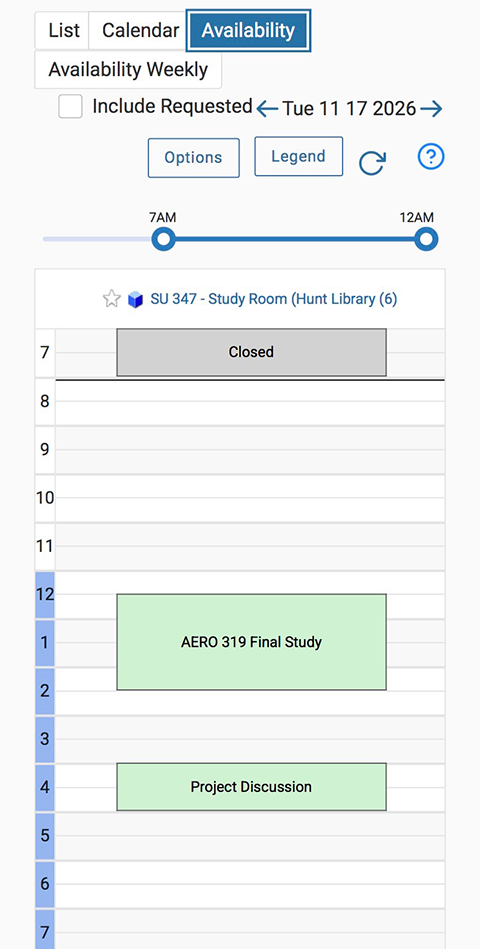
Select any available time slot to begin reserving a room.
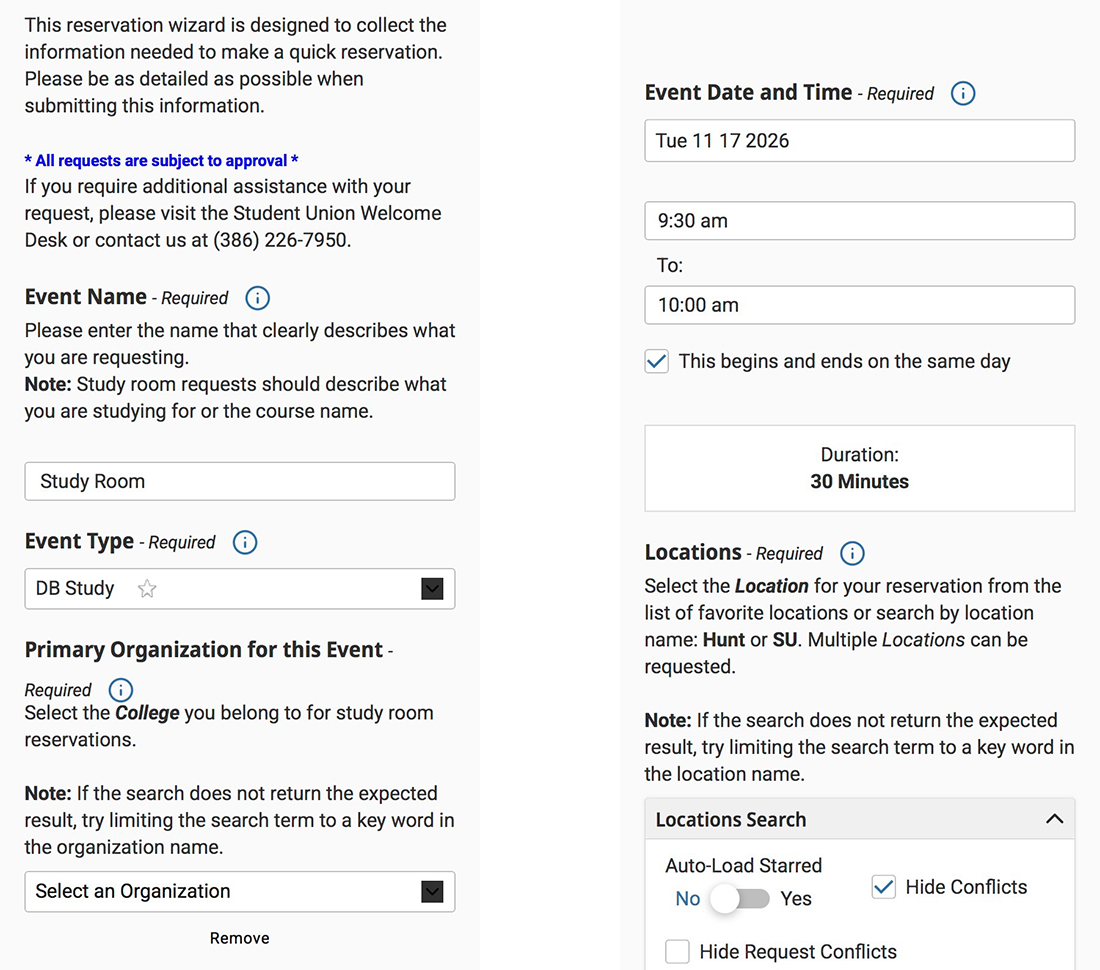
The next page will ask you to fill out information about your booking.
- Name your event in the "Event Name" box.
- Select DB Study in the "Event Type" dropdown.
- Enter your college under "Primary Organization for this Event" (ex: Engineering = X25/DB - College of Engineering).
- In the "Event Date and Time", select your start and end times. You can reserve a room from 30 minutes to 2 hours. (If you need the room longer than 2 hours, have another person reserve it after you or wait until after your booking to reserve it again if available. You are allowed 2 reservations a day.)
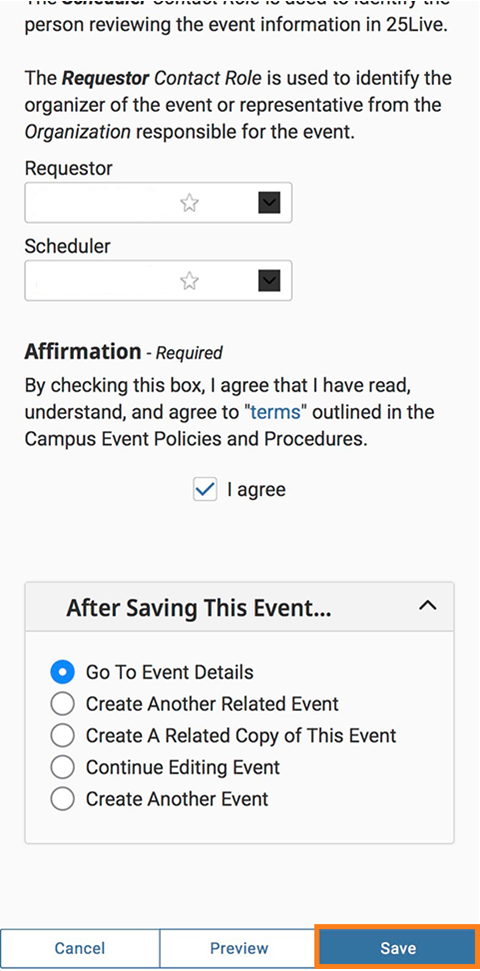
Scroll to the very bottom of the page until you see the "Affirmation" section and check the "I agree" box.
Select Save.
After these steps you will receive two emails. The first email confirms that the reservation request was received. After the reservation request is reviewed and approved by Student Engagement staff, you will receive a second email with either confirmation or denial of the reservation. If denied, please try reserving a different room or a different time. Library staff can only verify a reservation. The Study Room Use Policy can be found on the library’s website.
Things to Know About Booking a Group Study Room: There is a maximum of two hours per reservation, and the requestor can only book up to two reservations per day. If a requestor sends two back-to-back requests for one or multiple rooms on the same day, the second request will be denied. A second request can be approved after the first session concludes. Requests for different study rooms for the same time are not allowed and only the first request will be approved. Requests sent more than two weeks in advance will be denied. For issues regarding booking a room contact the Student Engagement Office by phone 386-226- 6039 or by visiting Student Union Room 214.
Happy Studying!